Your clips right in the game
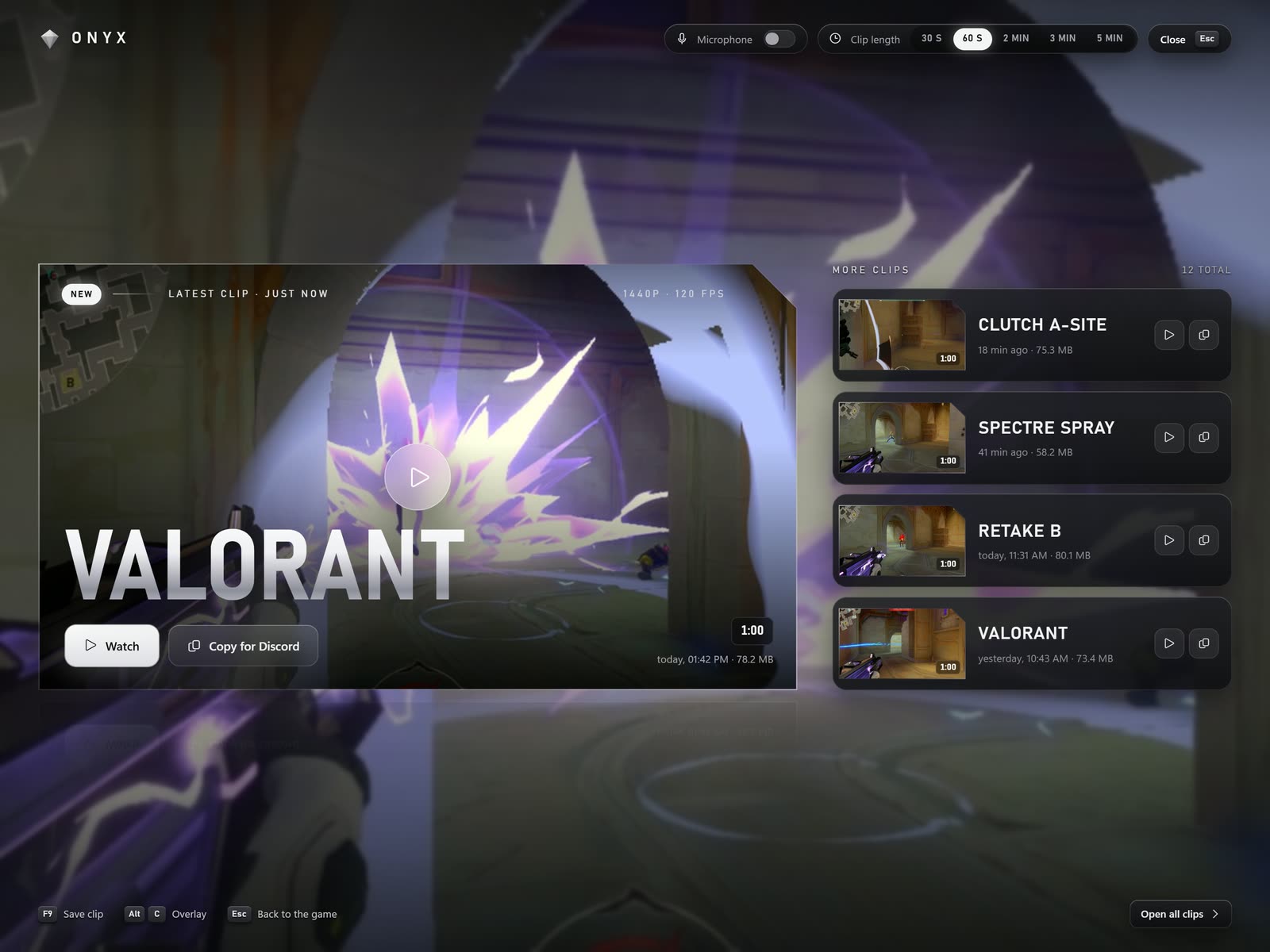
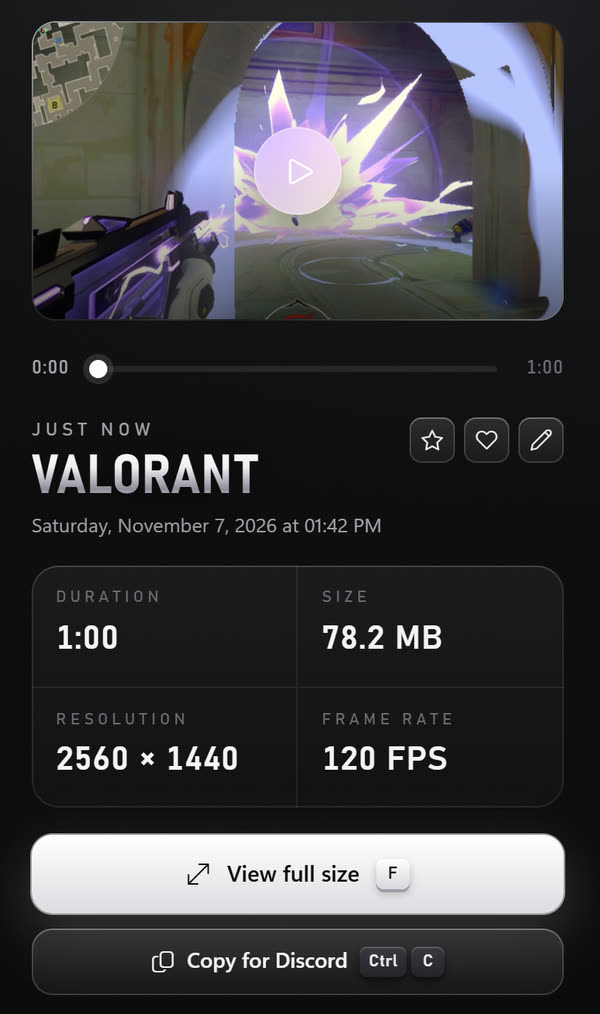
Alt+C opens the overlay over the game: your newest clip big, the latest ones next to it. Watch, copy for Discord, Esc takes you back to the game. Onyx injects nothing into the game for this.
Onyx records in the background. Hit F9 after the play, and the last 60 seconds are saved. No account, no cloud.
Version 0.5.4 · 104 MB · Windows 10 and 11
In the system tray while you play. The last seconds are always ready, anything from 10 seconds to 10 minutes.
A key press, mouse button 4/5 or the voice command “Clip that”. A short notice at the top right, the game keeps running.
Watch it in the overlay with Alt+C, copy it for Discord or cut it vertical for TikTok.
Alt+C opens the overlay over the game: your newest clip big, the latest ones next to it. Watch, copy for Discord, Esc takes you back to the game. Onyx injects nothing into the game for this.
“Copy for Discord”, and Onyx automatically brings the clip under your upload limit: 20 MB without Nitro, 50 MB with Nitro Basic, 1 GB with Nitro. Then just Ctrl+V in Discord.
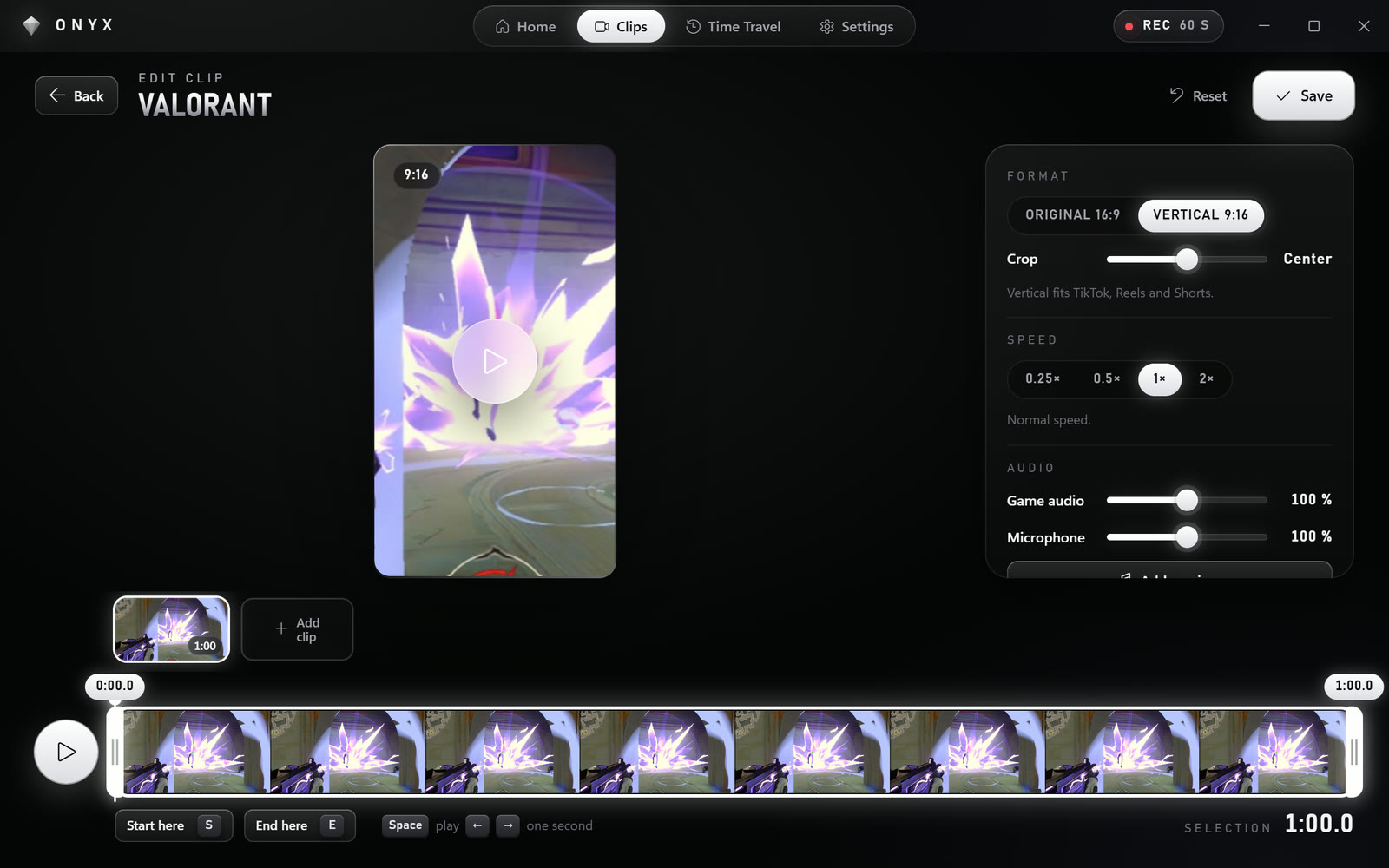
Switch on vertical in the editor once, and the landscape clip becomes 9:16. Plus trimming, speed from 0.25× to 2×, your own music and six transitions. Several clips can be combined into one.
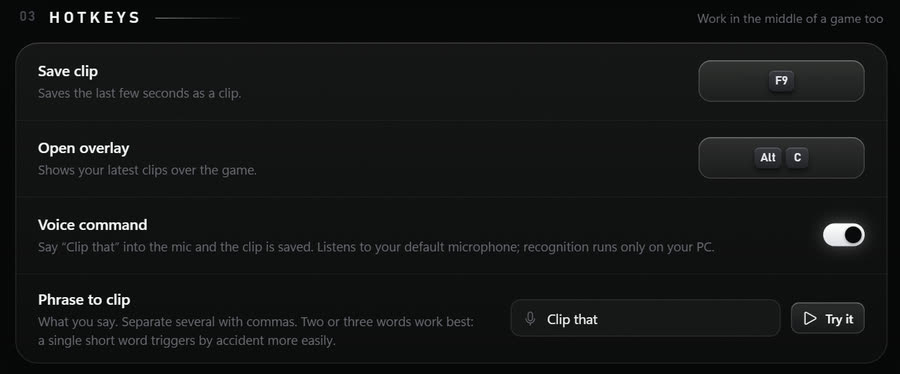
With the voice command, “Clip that” into the mic is enough. Recognition runs only on your PC, offline. You pick the phrase yourself and can try it right away.
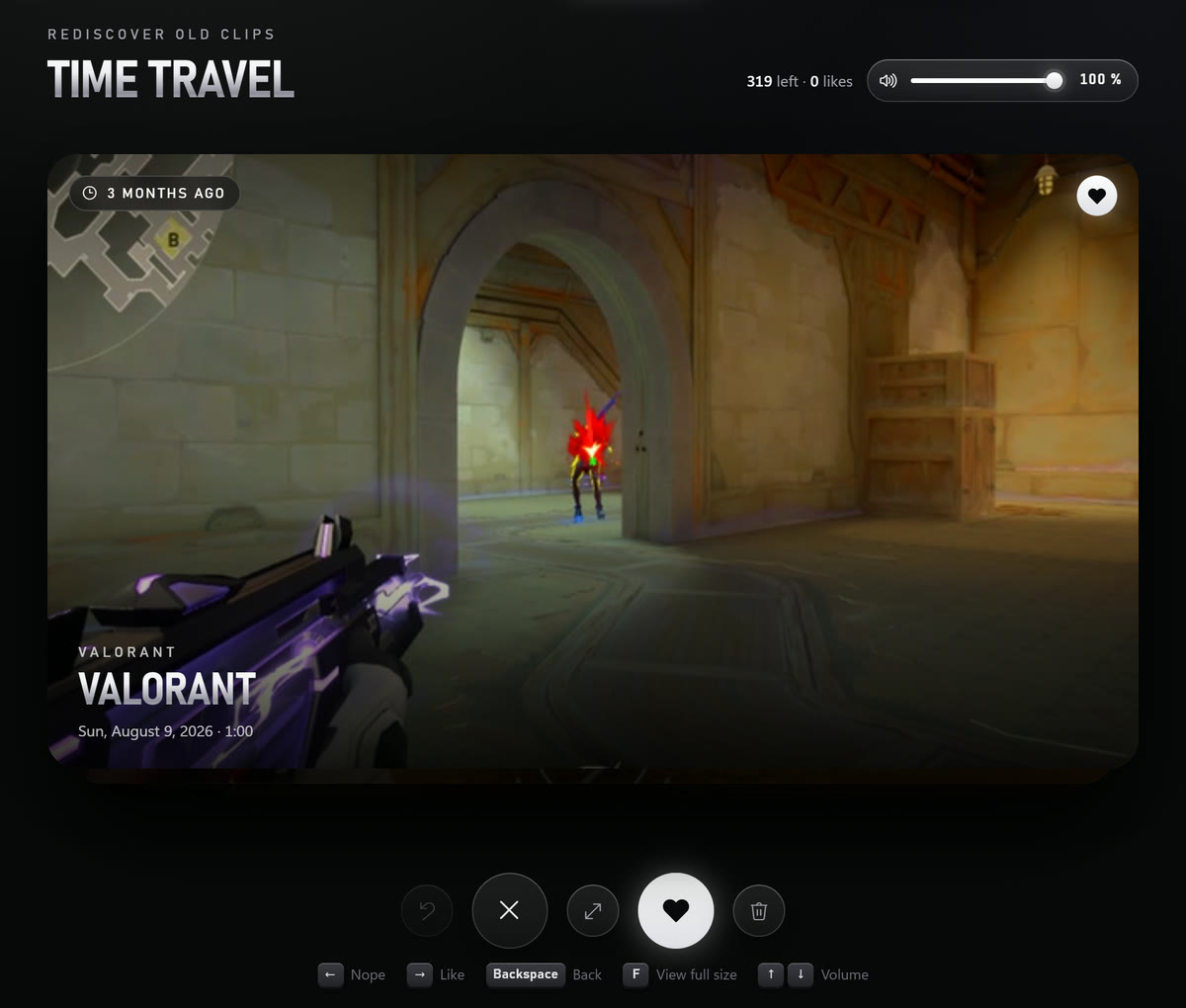
Rediscover old clips: one after another, right for Like, left to move on. Like Tinder, just with your best moments.
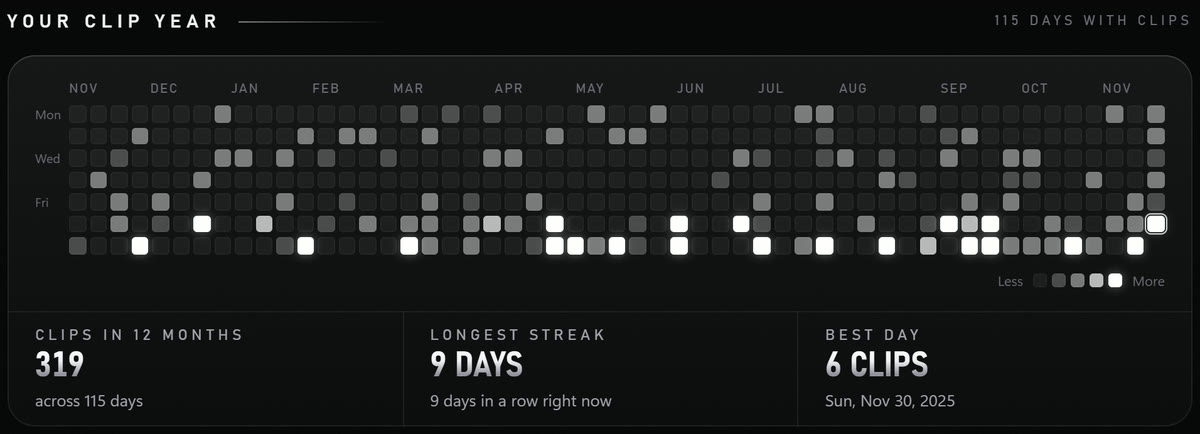
Every day with clips at a glance, your longest streak and your best day. Right on the home page.
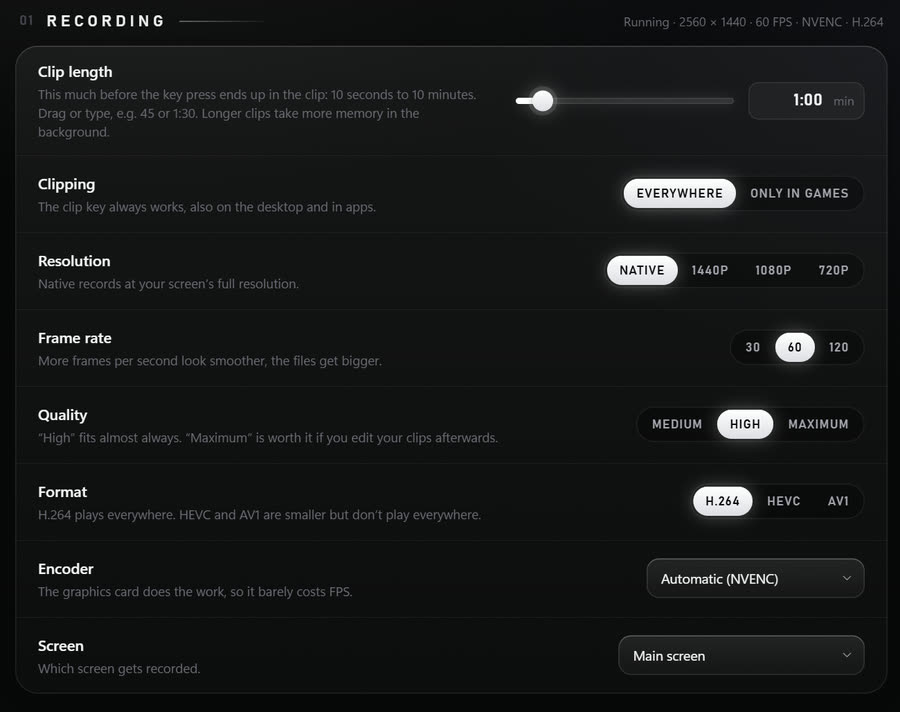
Onyx records with your graphics card's encoder, not with the processor. Onyx picks it by itself: NVENC on NVIDIA, AMF on AMD, Quick Sync on Intel.
Saving re-encodes nothing: the recording waits in short pieces and is only put together. Your game just keeps running.
If it still gets tight, turn down resolution and frame rate, for example to 720p and 30 FPS.
Your clips stay on your PC, in the folder Videos\Onyx. The only things that go online are the check for updates and messages and, if you leave them on, an anonymous usage statistic (a random ID, the version, how many clips were saved) and error reports without personal data. Never your clips, names or files.
Onyx needs Windows 10 (64-bit) or Windows 11. Ideally with a graphics card from NVIDIA, AMD or Intel: then it does the recording and the game hardly notices. Without a suitable graphics card the processor records (x264).
Onyx records your screen and detects the game in the foreground. It doesn't touch the game or load anything into it; the clips land in the folder, sorted by game.
No. Install, press F9, done. There is no sign-in and no cloud.
Yes. For new programs without a well-known signature Windows shows “Windows protected your PC”. Click “More info” and then “Run anyway”. Onyx installs only for your user and needs no administrator rights.
Onyx downloads new versions in the background and installs them when no game is running. Every update is digitally signed and checked before it starts. You can switch this off in the settings under “Updates”.
English, German and Russian. You pick one right at the first start and can change it any time in the settings under “General”.
Windows Settings → Apps → Onyx → Uninstall. Your clips in the folder Videos\Onyx stay where they are.
Download Onyx and just press F9 after your next play.
Download for WindowsVersion 0.5.4 · 104 MB · Windows 10 and 11